
Video recordings stored on the Navistream Camera can be accessed and viewed when the camera is either in Standby or Online. To learn how to access this screen please view:
How to Access Camera Recordings Page
Once you have selected the camera you wish to view the recordings you will be on the Camera Recordings Page for that camera
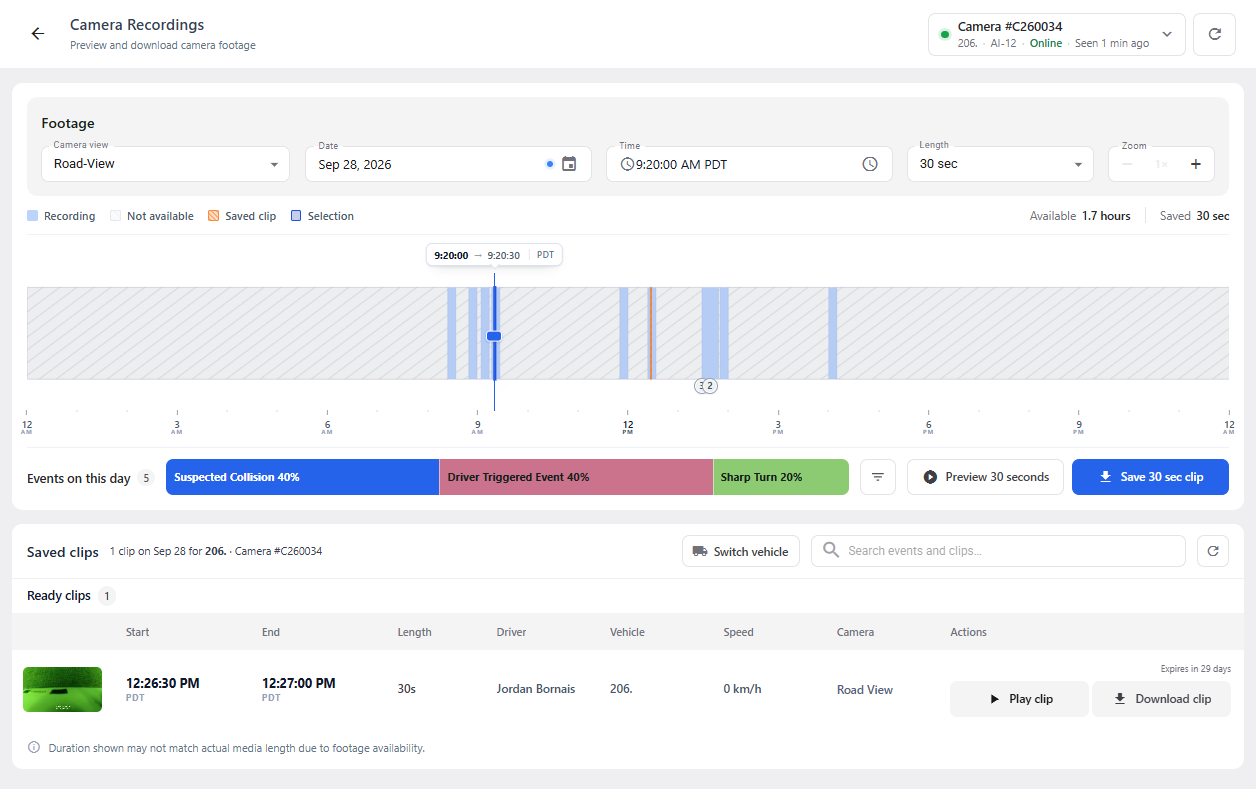
From here you can search the recordings by first setting the Camera View, Date, Time, and Length of the video clip you are interested in. From here you can also zoom in or zoom out on the Timeline below.

The time can alternatively be set by clicking on the Timeline. Above the Timeline there is a legend to the various states of the Timeline. Those states are:
Recording: This indicates the times for which recordings are available.
Not Available: This indicates the times for which recordings are not available.
Saved Clip: This indicates the segments of footage that have been previously saved..
Selection: This indicates the clip segment determined by the Time and Length selected.
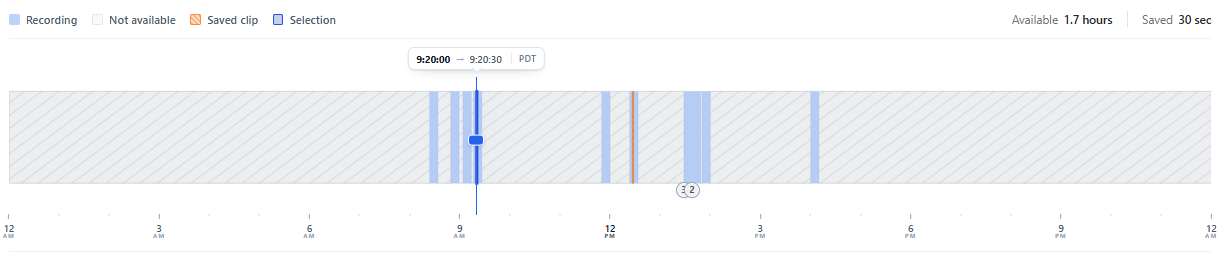
The timeline will also show you the total available time of footage for the particular time as well as the total time of saved clips.
Below the timeline will show you any Camera Events that were triggered on the day. By clicking on them you will see their time in the timeline above and you will be able to review them. You can select the filter icon to remove some or all events.

The Preview 30 section option allows you to play a 30 second section of the camera recordings, while the Save option downloads the event. This duration can be from 30 seconds to 10 minutes depending on the selection in the Footage section.

Once you have saved a clip it will appear in the Saved Clips section. Information and options pertaining to the clip are also displayed here such as Date, Start time, End time, Duration, Vehicle assignment, Speed, Camera view, the time before the saved clip Expires, the option to play the clip and the option to download the clip.

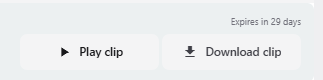
Saved clips remain on the Navistream website and will eventually expire. The time till it expires can be seen above the Download Clip button. To play select Play Clip or to download select Download Clip
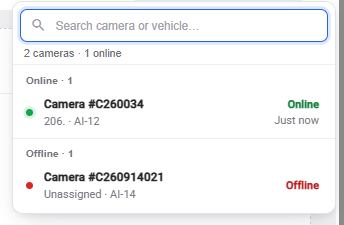
You are also able to change cameras and view a different camera for another vehicle. To do this, select either the Camera Name or Switch Vehicle.
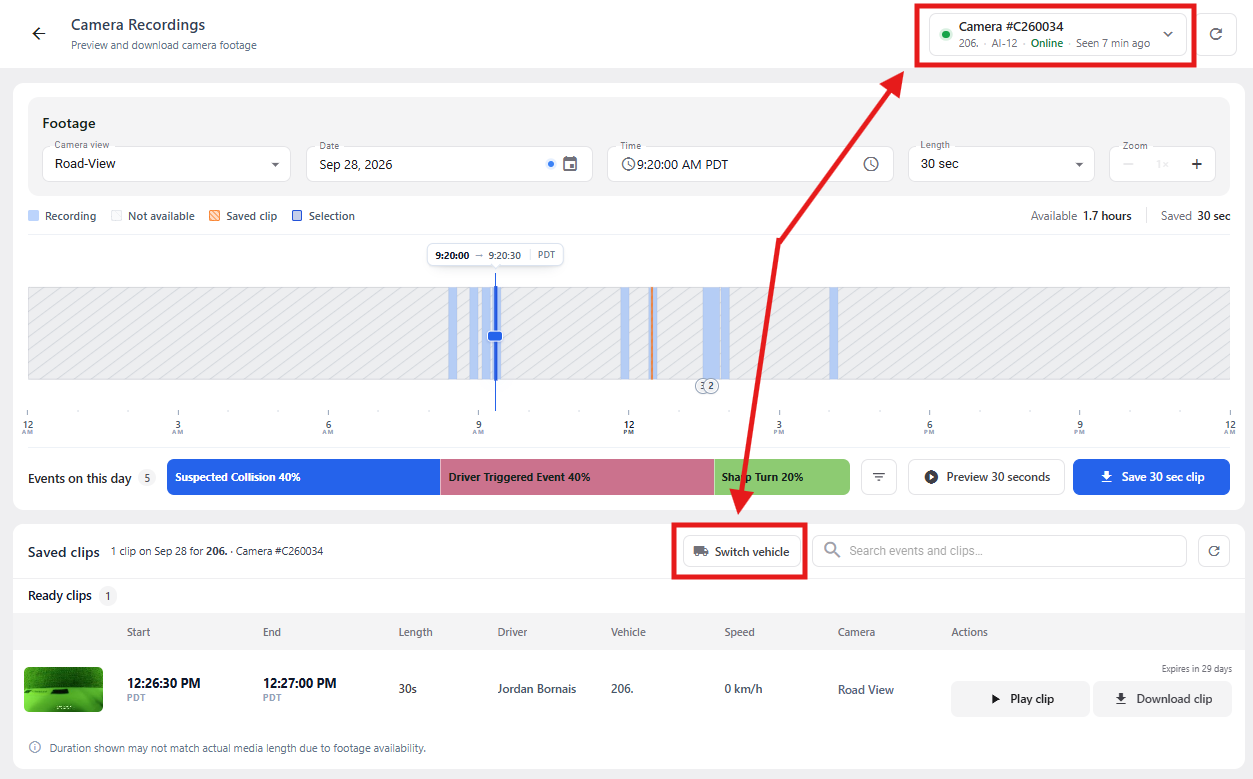
This will open the Camera dropdown menu where you can scroll, or search for the camera or vehicle. By clicking on the camera you will open the Camera Recordings page for that camera.
If you have any questions or issues accessing the Camera Recordings please contact Navistream Support.
Navistream Support
1(844)571-8200 Ext 2