
With the latest Navistream update there are now two options to send a copy of most reports via email in the web client.
These options present as two buttons, entitled Email Report and Schedule Report. To access these options, select Report located near the top right hand corner of the web page when an applicable report is selected:
The email button is best used when you want a one time copy of the report to be emailed to an individual.
Clicking the Email Report button presents the following dialog:
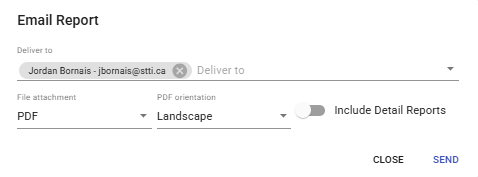
Enter the email address for the person that you want the report sent to. Select the file format you would like the report (PDF or PDF & CSV), how you want the PDF to be orientated (Landscape or Portrait) and if you would like to include the details on the report. Once satisfied the Send button to send the email.
The second way to enable emailing of reports is to schedule the email for delivery. Clicking the Schedule Report button presents the following dialog:
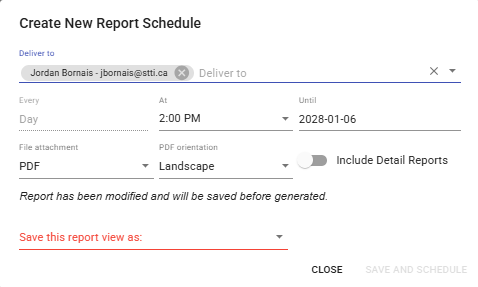
The Deliver to field contains the email address that you want the scheduled report to be delivered to.
The Every field is not selectable at this point of time and defaults to Day.
Select At will allow you to select when the report is sent.
The Until option beside until allows you to a choose a date when you will stop receiving the scheduled report.
Select the file format you would like the report (PDF or PDF & CSV), how you want the PDF to be orientated (Landscape or Portrait) and if you would like to include the details on the report. Once satisfied click Schedule button at the bottom to create the report schedule.
For either option, a report will be delivered to the email address specified in the Deliver to field. The sender will show as “Navistream Reports”. The body will contain a statement “Your daily scheduled <name of report> report”, and will include a pdf attachment of the report. The filename of the attachment will contain the driver name and log date.