
The Active Driving Regulations can be changed one of two ways on the tablet.
The first way you can change your Active Driving Regulations is during the login process.
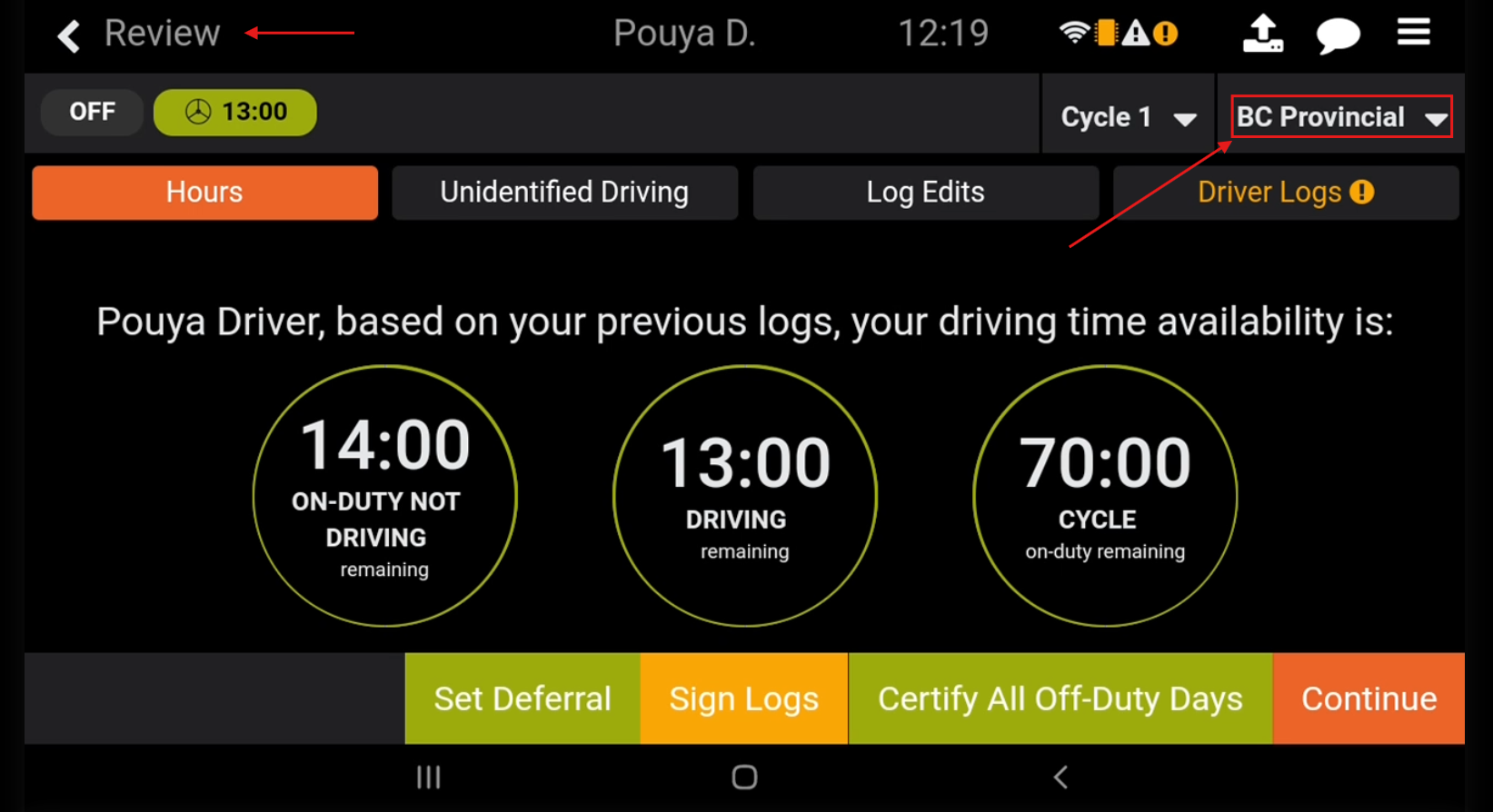
When you are navigated to the Review Hours screen, you can change your Active Driving Regulations by tapping the current regulations shown on the top right corner of the screen.
The second way you can change your Active Driving Regulations is from the main menu:
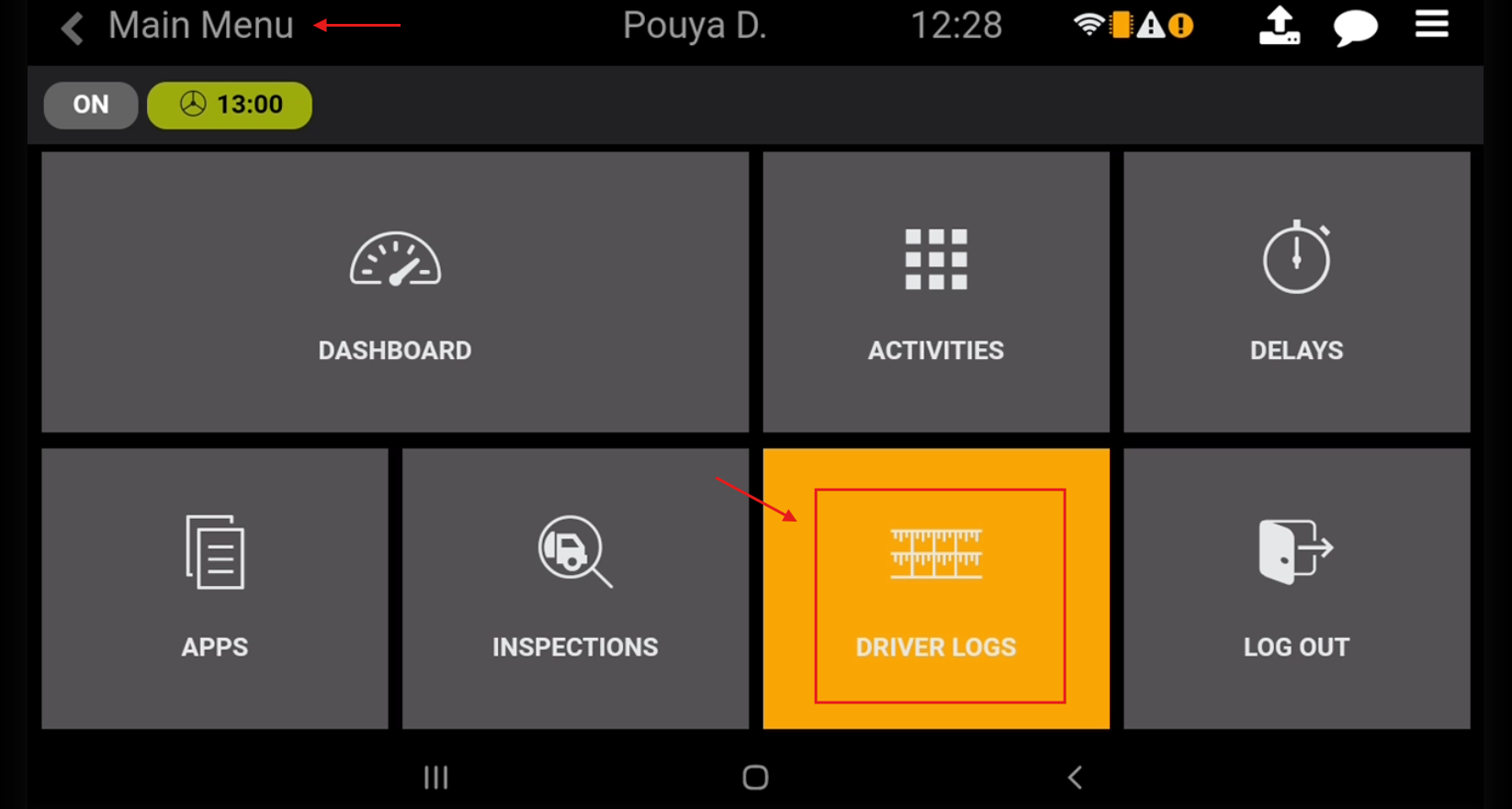
From the Main Menu, tap, and select the option that says DRIVER LOGS.
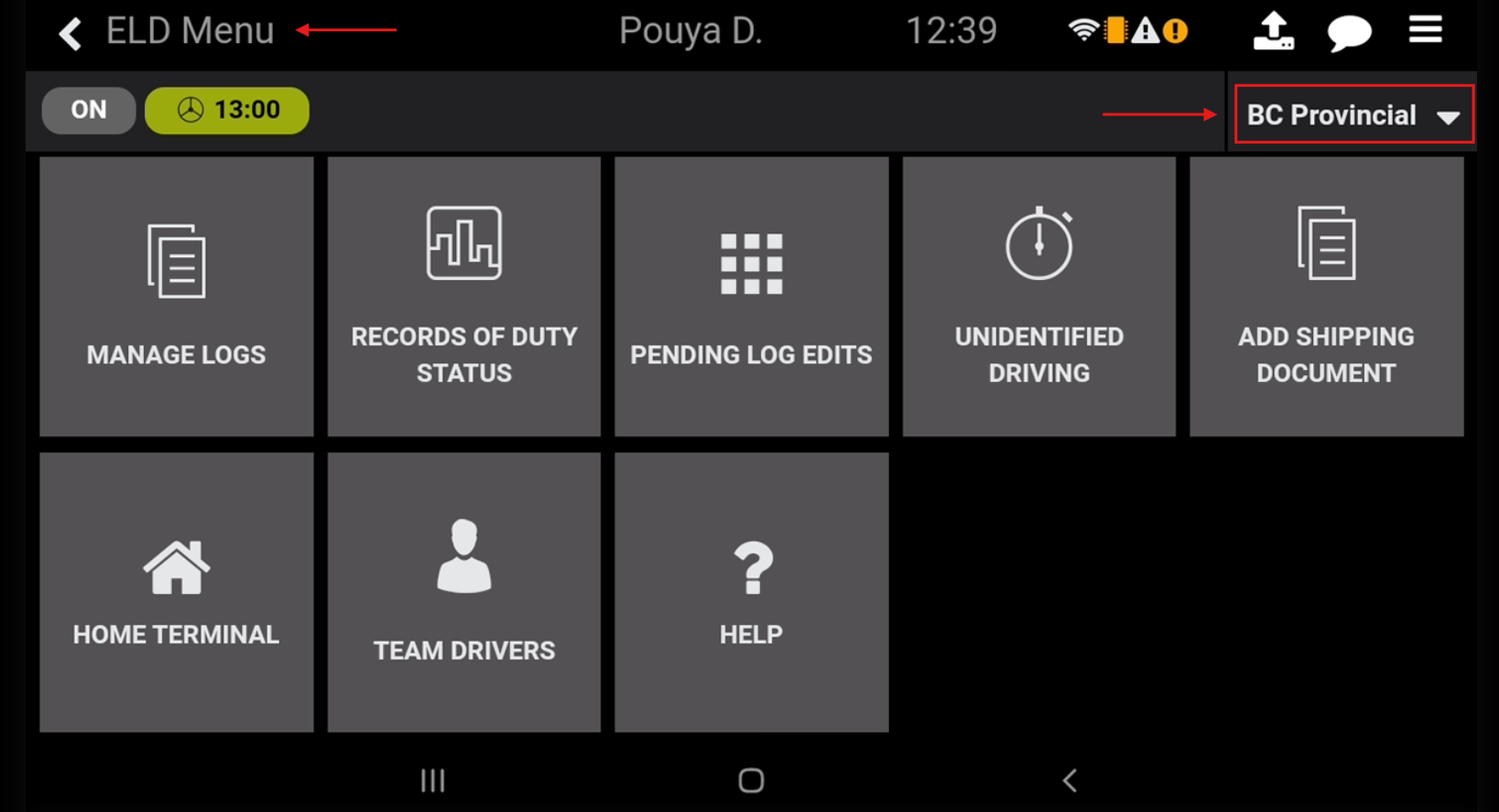
You will be then navigated to the ELD Menu, where you can tap on the current regulations set shown in the top right corner of the screen.
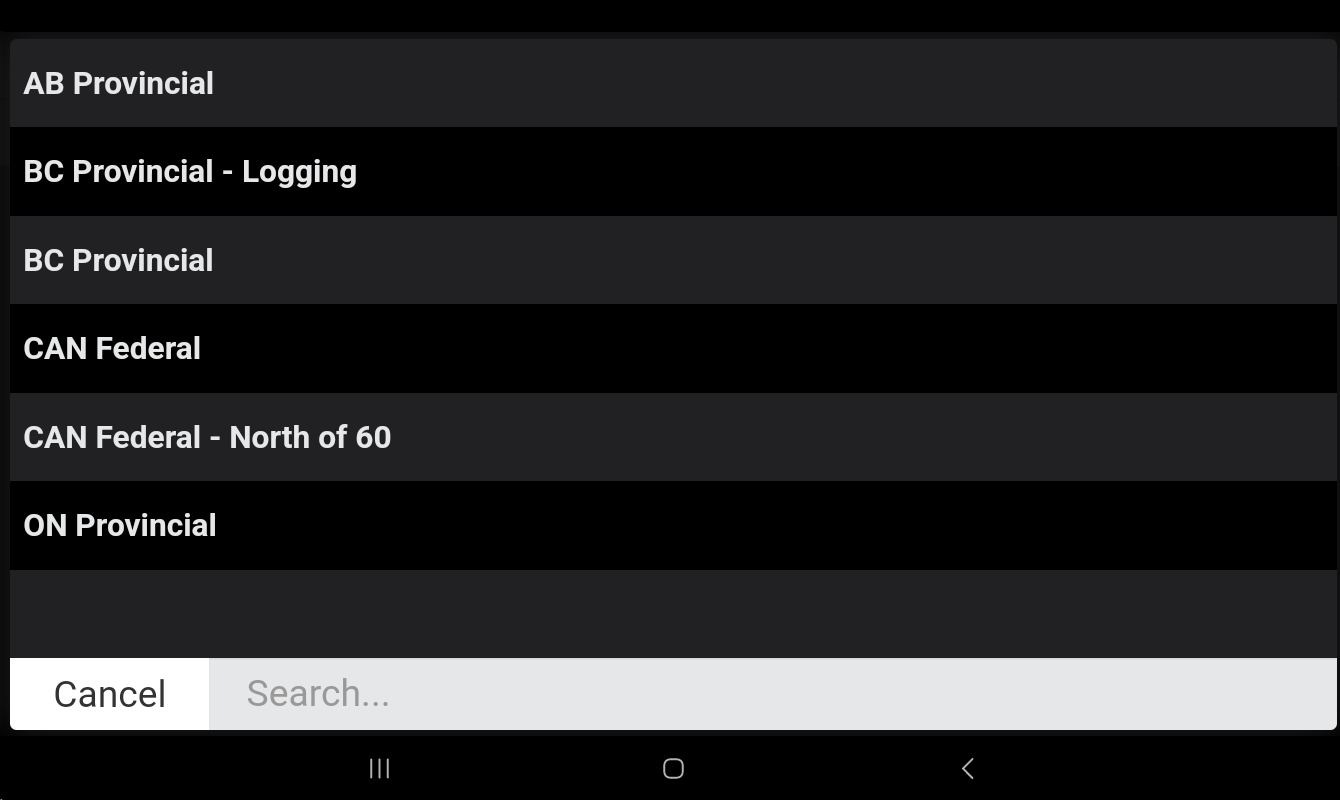
In either of the mentioned ways, you will be presented with a list of the available Active Driving Regulation. Choose the regulation you wish to change into by tapping on it’s name.
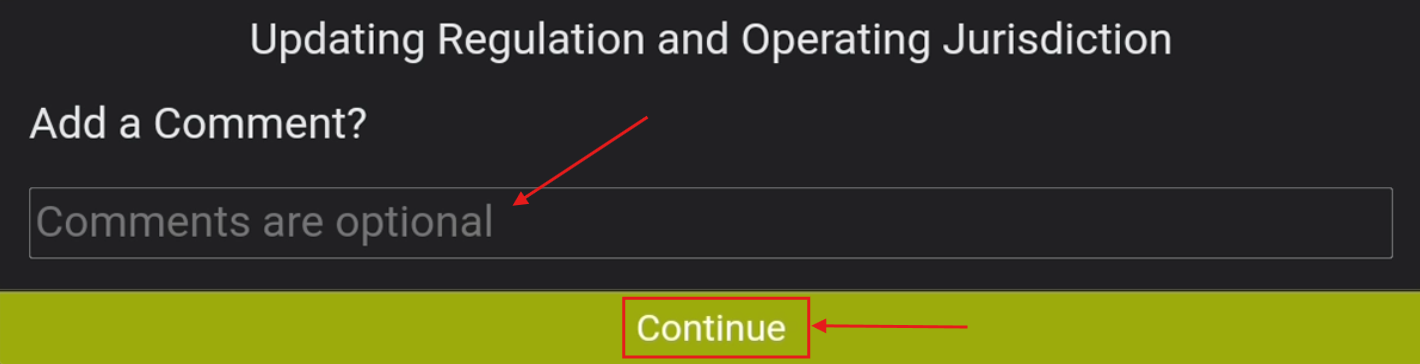
You have the option to add a comment on this action should you wish.
Press Continue to apply changes.
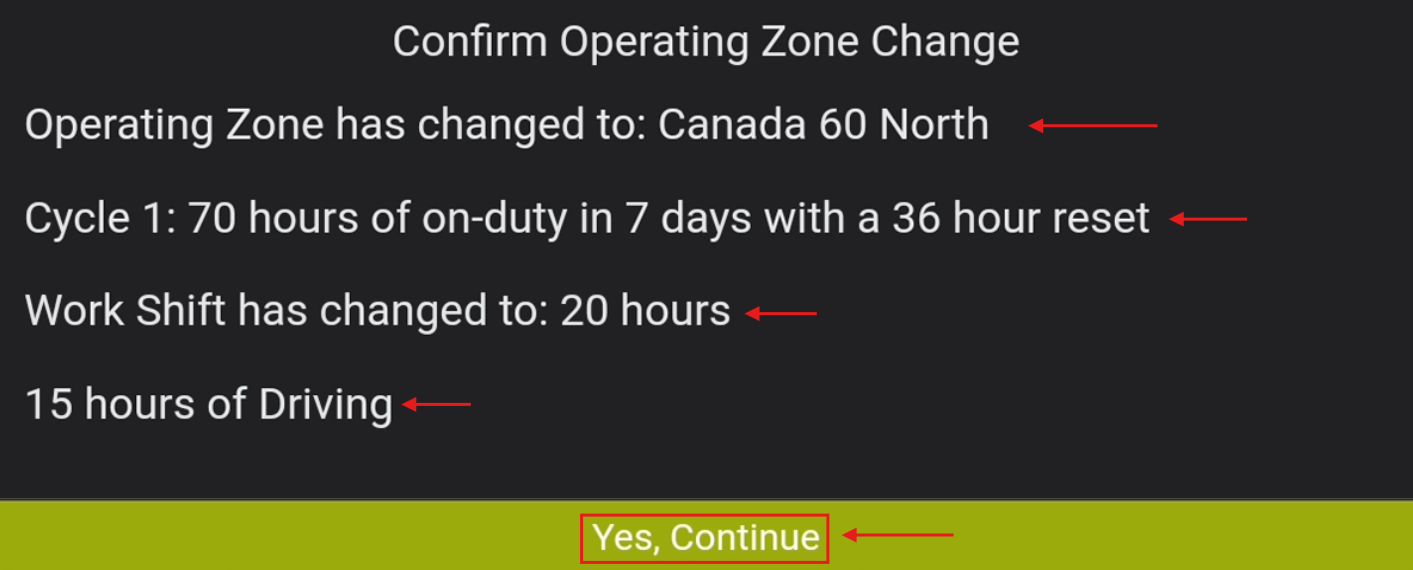
A confirmation message will appear on your screen with the changed Operating Zone, your Cycle Summary, Work Shift Hours, and Driving Hours. Tap on “Yes, Continue”.
Your new Active Driving Regulation is reflected on the top right corner of your screen.
If you have any questions about how to change Active Driving Regulations, please contact Navistream Support.
Navistream Support
1(844)571-8200 Ext 2
navistream@stti.ca