
For our Inspection Summary Report, we'll go over the structure and point out key features that will be of use to you.
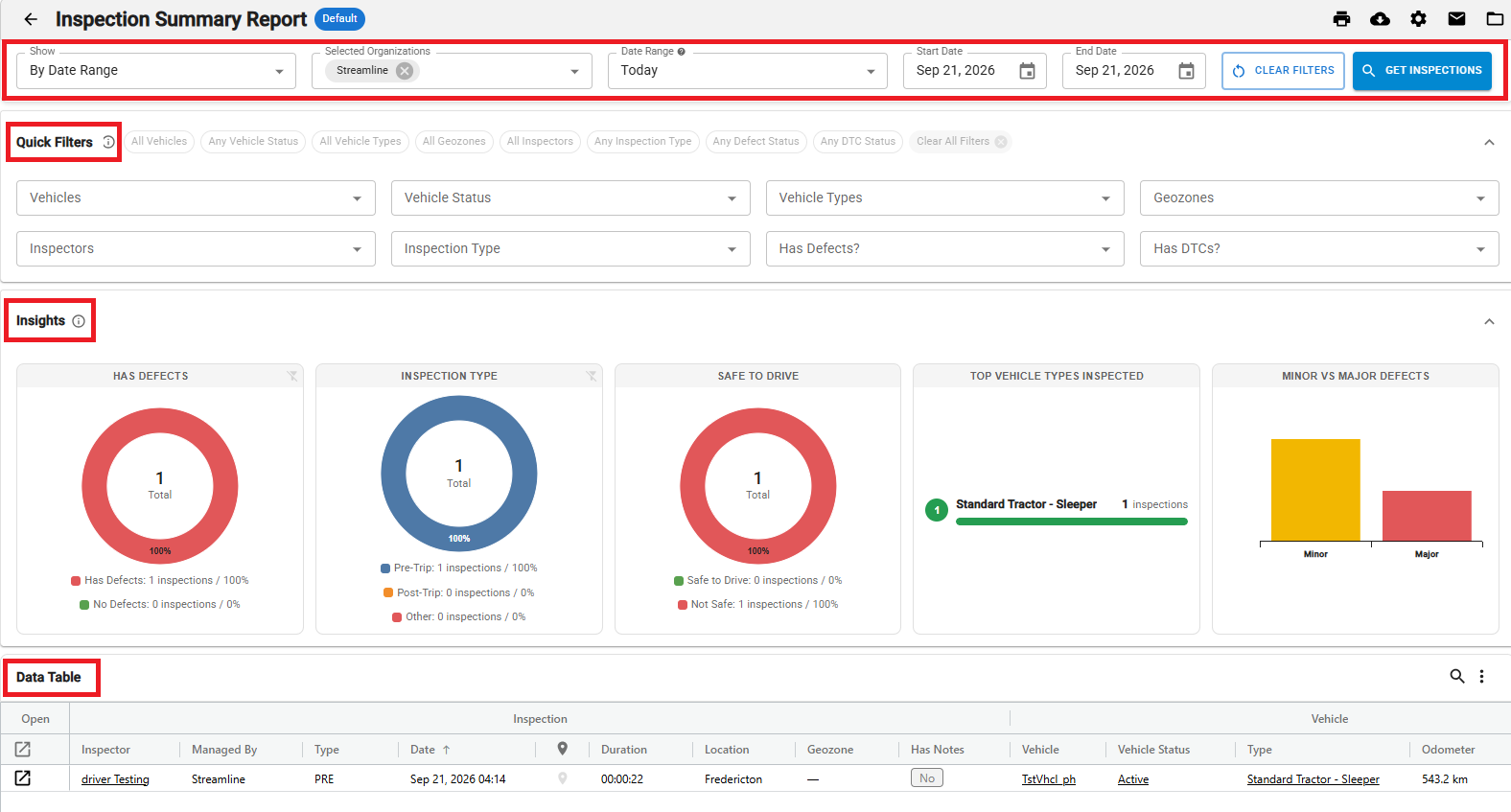
QUERY
In the Query section at the top of the page you have the following fields and options. Once these are set, click on GET INSPECTIONS.

Show:
Select either Latest By Vehicle, Latest By Inspector or By Date Range.
Selected Organization:
Choose one or more organizations available to you. Inspections from these organizations will show up in the data table.
Date Range:
Specify a date range from the pick list or specify a range using the Custom range. Inspections from drivers that match that date range will appear in the data table. This section only appears if the Date Range is selected in the Show picklist.
QUICK FILTERS
Once you have the inspections, you can utilize the Quick Filters to further refine your search. The available Quick Filters are:

Vehicles:
Select one or more vehicles to create a filter. Only the selected vehicles will appear in the data table.
Vehicle Status:
Select one or more vehicle statuses. This will allow you to filter depending on whether or not the vehicle is set to an Active state, Inactive state, or All states.
Vehicle Types:
Select one or more vehicle types to create a filter. Only the selected vehicle types will appear in the data table.
Geozones:
Select one or more geozones to create a filter. Only inspections completed in the selected geozone will appear in the data table.
Inspectors:
Select one or more users to create a filter. Only inspections completed by the selected users will appear in the data table.
Inspection Type:
Here you can filter by Pre-Trip inspections, Post-Trip inspections, Other inspections, or All inspections.
Has Defects?:
Select Yes, No, or All. Only inspections matching this selection will appear in the data table.
Has DTCs?:
If the ECM has reported Diagnostic Trouble Codes by the time of inspection, you can filter for them here. You may select Yes, No, or All.
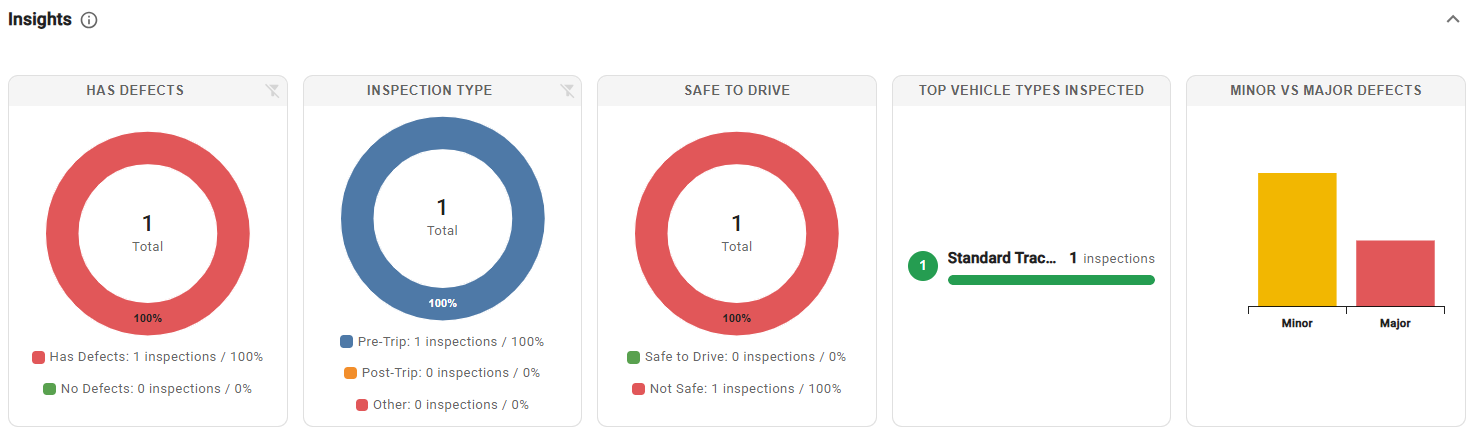
INSIGHTS
Insights is an overview of inspection data based on the currently displayed inspections in the data table. This is influenced by your selected Query and Quick Filters.
DATA TABLE
This is where you will see the inspections that match your Query and Quick Filter selections. You're able to see important information at a glance, such as the inspection date, the inspector's name, and summary information about the inspection including location, geozone information and more.

Click the Pop-Out icon to view the Inspection Detail Report. This displays all the available information for the given selection.

Click the Location icon to see the exact location where the inspection was completed.

If you have questions regarding how to use the Inspection Summary Report, please contact Navistream Support.
Navistream Support
1 (844) 571-8200 Ext 2