
We have released, and are testing, a new version of the Hours of Service Report that we would like to introduce. This new report allows the users with Super Admin, Manager, and Dispatch access to view, and send up to a full year (365 days) worth of Driver Logs via email. Should you encounter any issues, please contact Navistream Support.
To access this new feature, go to mynavistream.com, navigate to the Reports Tab, then look under the "Driver Logs" to locate "Hours of Service Beta". This report is also accessible on the left hand column under "Driver Logs".
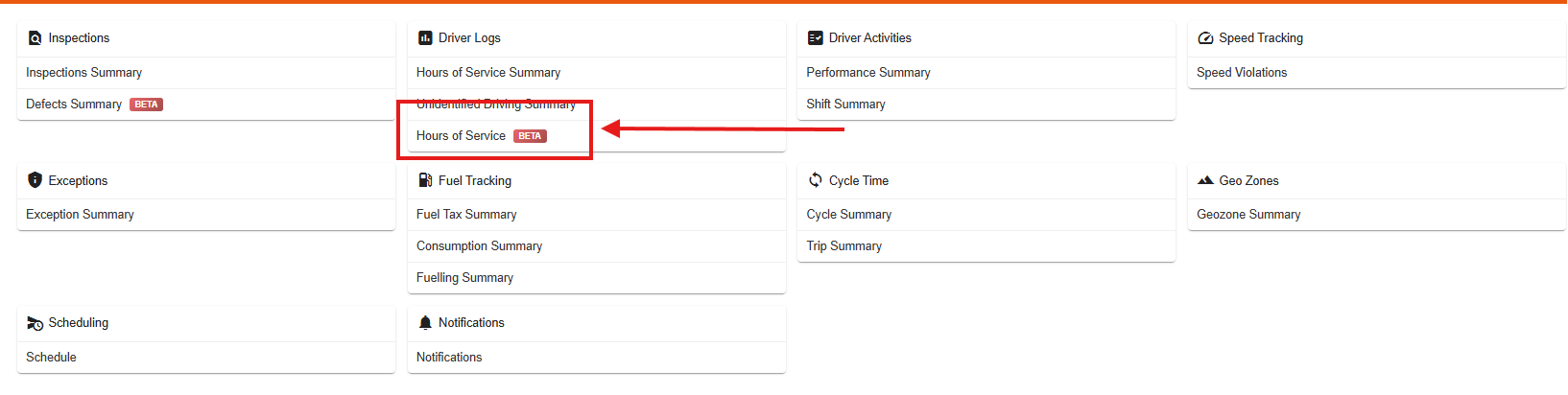
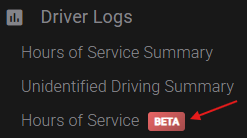
The report is composed of 4 sections:
Query
Quick Filters
Insights
Data Table
1. Query
In this section, you are able to select organization(s), drivers and specify a date range for the query. Once the desired data, and ranges are selected, you can click on "Get Logs". This will populate the Data Table on the bottom of the page.

The new "Hours of Service Report", and "Defect Summary Report" share the new Query options.
This means that in the Query section, the search results do not update automatically in real-time when filter criteria are changed. You must click "Get Logs" to apply your updates and refresh the table.
2. Quick Filters
This section allows you to filter out the results from the above query. These filters are:
Vehicles: Select all, or specific vehicles for the query
Log Activity: Options for "Has Activity", "Has No Activity" or "All"
Driver Enabled: Filter out disabled drivers
Violations: Options for if there are any violations, or ones that are reviewed/ unreviewed, or all
ELD Error Codes: If there are any diagnostic or malfunction codes on the Driver logs
Completeness: Filters out incomplete logs if the day is still in progress
Log Certification: Options for if the driver has or has not signed the Logs

Please note that this section is in real-time, and changing the filters will impact the Data Table automatically.
3. Insights
This is a new section that gives you visual insights about the Driver Logs you have queried.
For example, an insight could show you if most of your drivers have any violations, or if their Driver Logs are unsigned.

4. The Data Table
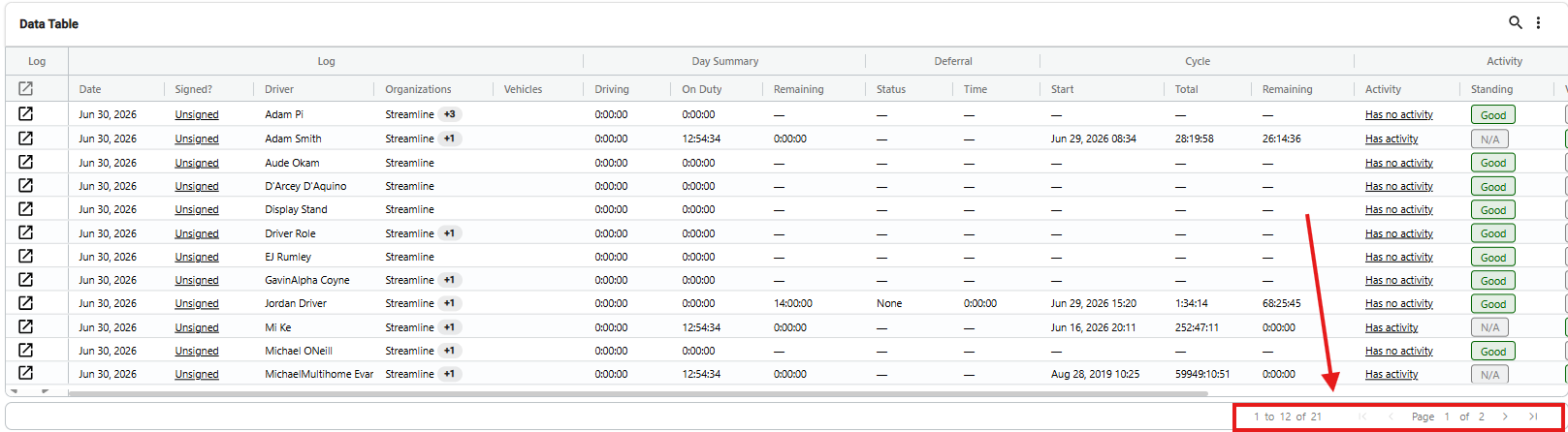
This table is similar to the previous Navistream reports with one exception. There are now pages, since the table can only show 11 rows of data at a time on each page. To navigate between pages, simply click the arrows indicated at the bottom of the Data Table to move between any and all pages. You can also sort any column, simply by clicking on any desired column's title (For example, clicking the "Date" will sort the entire table by earliest, or latest date, Or clicking on "Driver" will alphabetically sort the table by Driver Names).
The new Hours of Service report also gives you the ability to Transfer Data, Export, or Email Data when you’re selecting a custom date range.
Click on the desired option from the top right corner of the screen to begin the process:
Transfer Data:
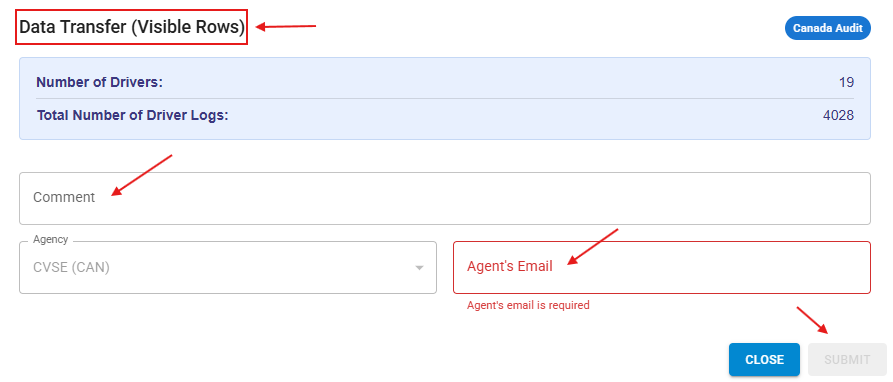
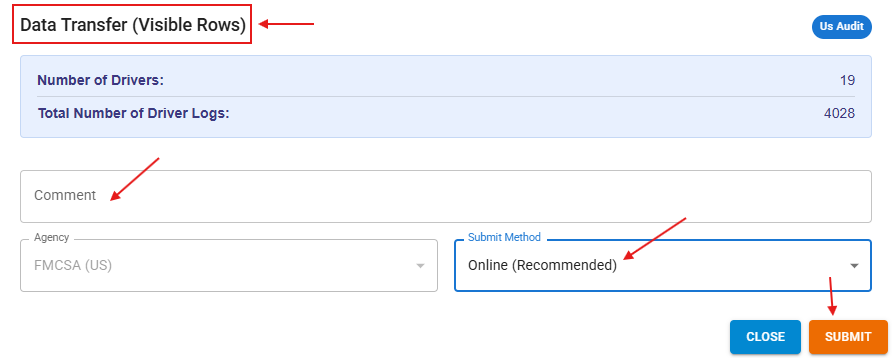
Transfer Data gives the user the ability to transfer Hours of Service data for General Purpose, Canadian Audit (CVSE), or US Audit (FMCSA).
For Canadian Audit: enter a valid Agent’s Email in the required box, add comments (Optional), and click Submit to send the report.
For US Audit: make sure you are selecting “Online (Recommended)” in the “Submit Method” box, and click Submit to send the report to FMCSA.
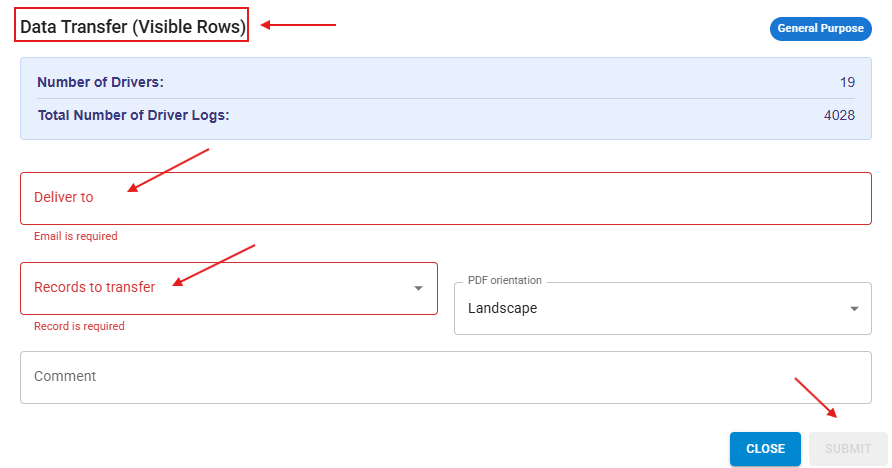
For General Purposes: you have the option to enter an individual’s email, and select your report’s official format (US, or Canada) from the “Records to transfer” box. Click submit to send the report.
Export:
Gives the user the ability to export the Hours of Service data in Excel, CSV, or PDF formats.
Email data:
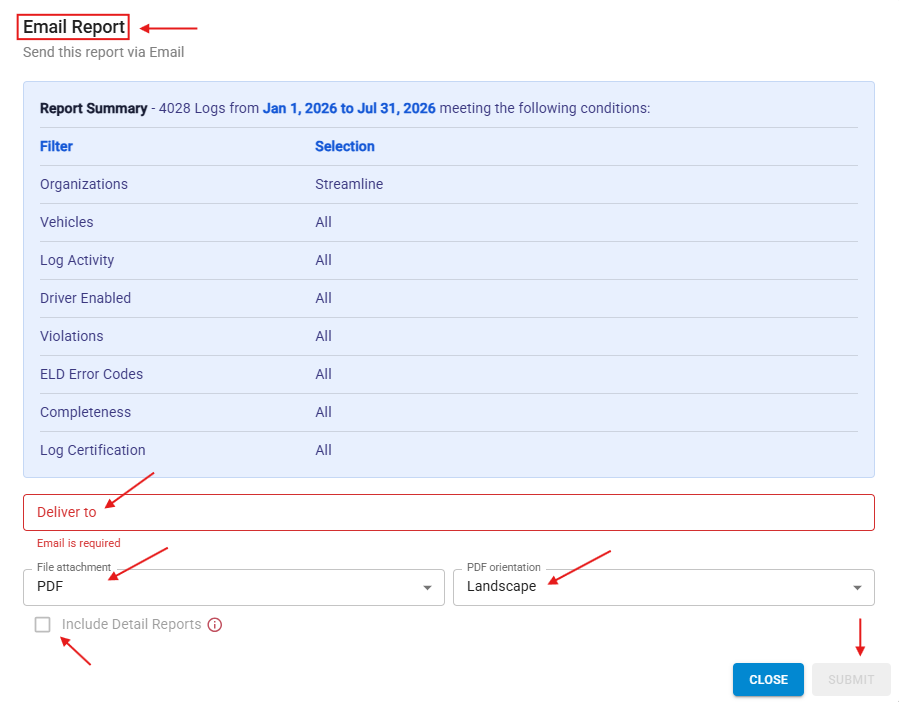
Gives the user the ability to email the Hours of Service data (With the option of including all of the report details including ELD events) to individual email addresses. Note that the report will be applying the filters you have customized in the “Quick Filters” section, and will show you a summary of the customized filters.
You have the option to enter an individual’s email address in the “Deliver to” box, otherwise it will populate, and send the report to the email address listed for the current user. Select the desired format of the report from the “File Attachment”, and choose your “PDF Orientation” if you’d like. Click on Submit to send the report.
Scheduled Reports
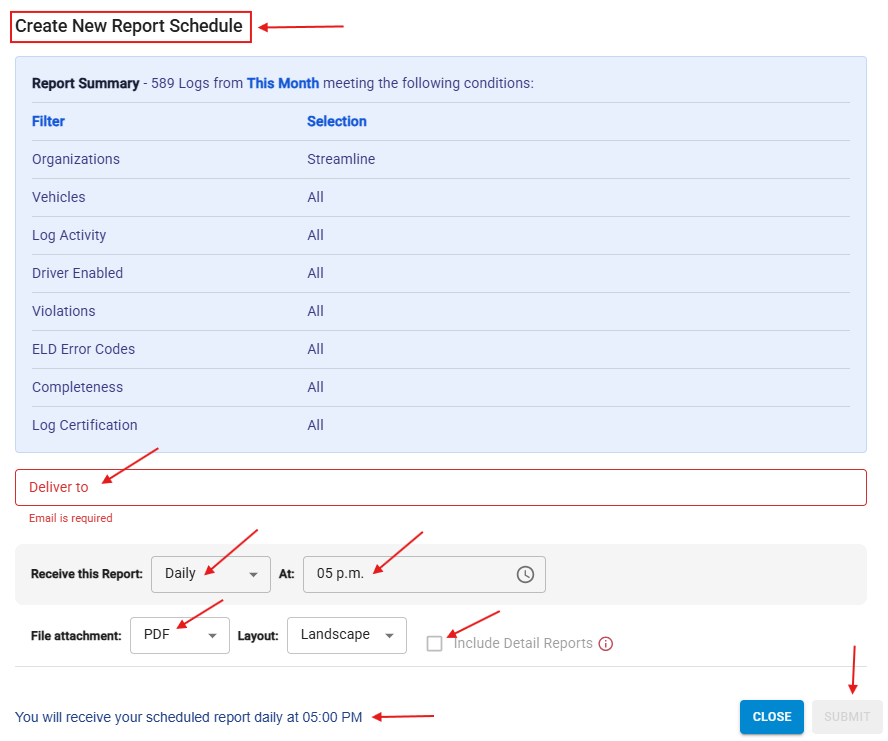
You also have the ability to Schedule Reports for any of the systems Date Ranges (And NOT a customized date range). This tool allows the user to email the desired report with any customized filters on a select regular basis of Daily, Weekly, or Monthly.
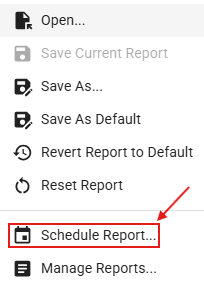
Select the reports icon from the top right corner of the screen.

Select Schedule Report from the popped-up menu.
Enter the destination email in the “Deliver to” box, choose the desired frequency of receiving the report, and the accompanying details (Weekday, hour, etc.), Check the “Include Details” if you like, Verify the summary of your filters, and the summary of your customized scheduled report on the bottom of the screen. Click Submit to apply changes.
If you have any questions or issues regarding the new Hours of Service BETA report, please contact Navistream Support.
Navistream Support
1(844)571-8200 EXT 2
navistream@stti.ca